

Four steps get you from nothing to a working chat.
1. Sign in to Grok Build
The Workbench talks to Grok through Grok Build on your computer. Sign in once in a terminal:
grok loginYou need a SuperGrok account. If grok is not installed yet, follow the Grok Build install steps at docs.x.ai/build, then come back here.
This login is remembered. You do not repeat it every time you open the app.
2. Open the Workbench
Packaged app. Install Grok Build Workbench like any other desktop app, then open it. macOS only for now.
From source. If you are running the open-source project:
npm install
npm run dev
A window opens with an empty sidebar. That is expected on first launch.
3. Create a project
Click New project in the top of the sidebar.
- Give it a name you will recognize later. You can rename it later from the ⋯ menu or by double-clicking the name.
- Optionally attach a folder on your computer. If you do, Grok can read and edit files in that folder.
- You can skip the folder. Chats still work; Grok just will not touch local files until you attach one.
If that folder already has Grok Build sessions from the terminal, those chats appear in the project automatically.
4. Start a chat
Click the + next to the project name. Type a request the way you would talk to a colleague, then press Enter.
The first time, a card of questions about the project may appear above the composer. Answer or Skip — your choice.
Examples that work well:
- “Show me how this project is laid out.”
- “Add a dark mode toggle to the settings screen.”
- “Explain the checkout flow in plain language.”
While Grok is working you can open another chat, switch projects, or hide the extra panes. The first chat keeps going. To change direction in the same chat, type and click Steer (or press Escape to stop).
What you should see
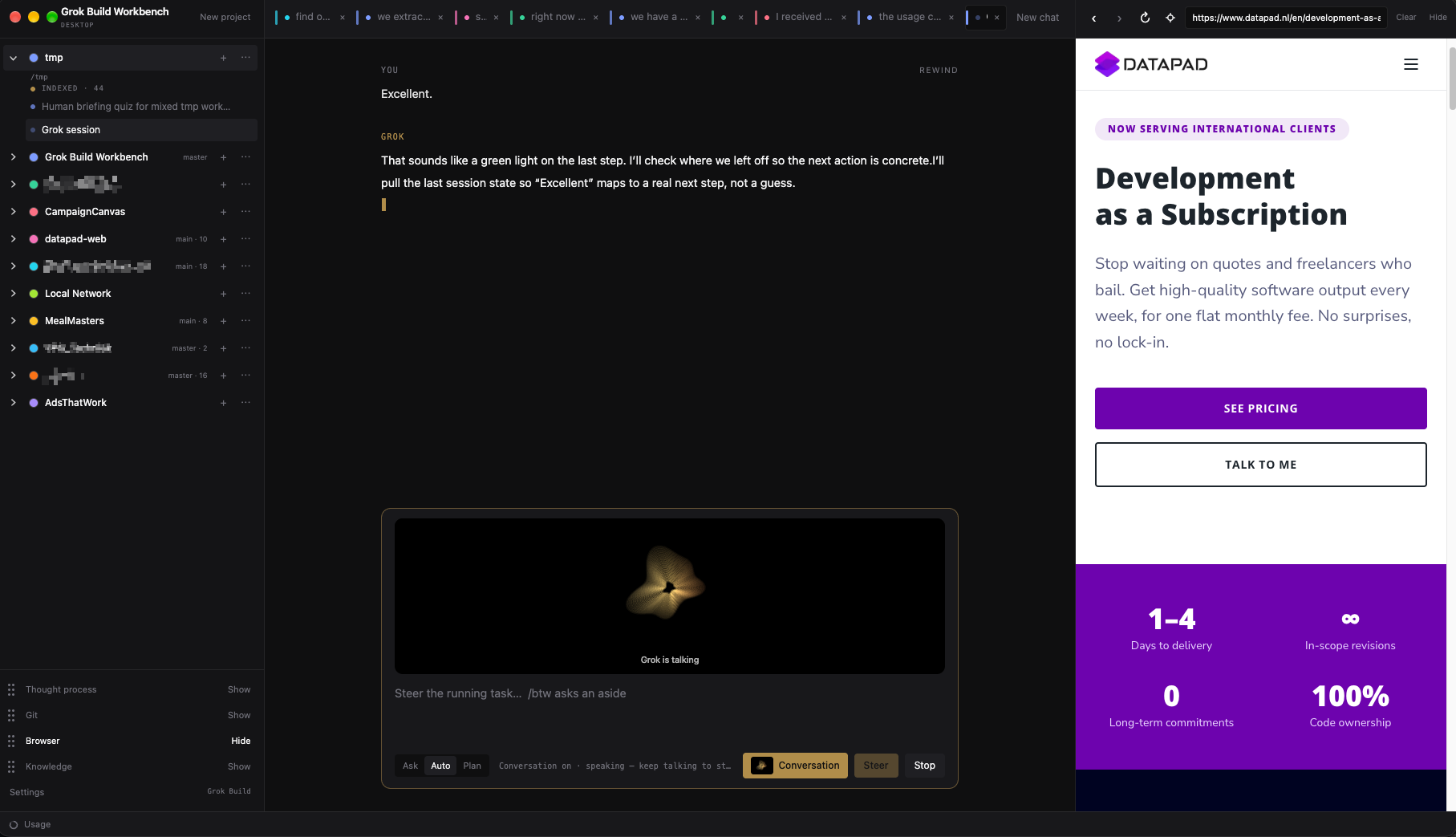
The left sidebar lists projects and chats. The middle is the conversation. On the right you can show Thought process, Knowledge, Browser, and Git. Hide any pane you do not need.
Next: sign-in details if something did not connect, or projects and chats if you are in.