

The Thought process pane is the live window of what Grok is doing — not only the finished reply in the chat. Open it from the sidebar: Thought process → Show.
What you see
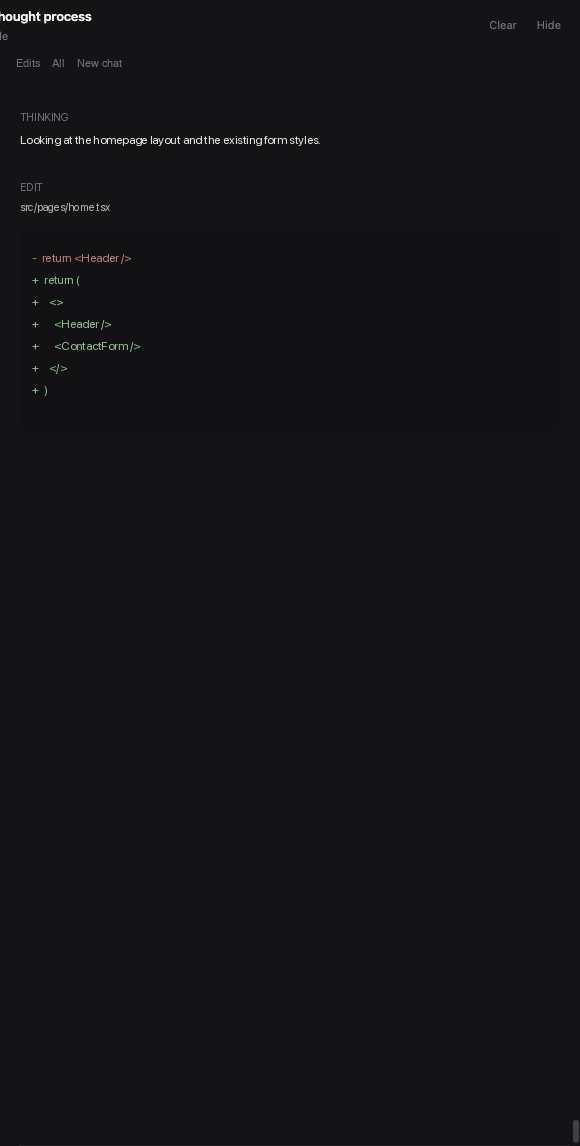
Each line is a step. Typical kinds:
- Thinking — Grok’s inner notes as it works.
- Tool — a command or file action.
- Reply — text being written into the chat.
- Plan — a checklist Grok proposed.
- Permission — Grok is waiting for you to allow a step.
- Error — something failed.
File changes can show a diff right in the pane. Click a long thought to expand or collapse it. While a step is running, a small pulse marks it as live.
Filters
The chips under the title control the list:
- Edits — only steps that changed files. This is the default.
- All — every step, including thinking.
- A chat name — only that conversation (useful when several chats run at once).
Keeping your place
The pane follows the latest step. Scroll up to pin the view so new lines do not jump you away. Scroll back to the bottom, or use the jump control, to follow along again.
Clear empties the log. Hide closes the pane; you can open it again from the sidebar.
When to use it
Keep Thought process open when you want to watch the work, not only the answer — especially if a chat feels stuck. The current step is usually visible here before the chat catches up.