

You can talk to Grok instead of typing. Listening and speaking run on this Mac. Audio does not go to a cloud speech service. Voice only supports English for now — other languages will not transcribe or speak reliably.
The first time you turn voice on, the Workbench downloads a local speech model (about 400 MB). After that it stays on your computer. macOS will ask for microphone access — allow it, or open System Settings → Privacy & Security → Microphone if it was blocked.
Turn voice on
- Open Settings (or type
/settings). - On the General tab, switch Voice on.
- Allow the microphone if macOS asks. Use Request access if the prompt did not appear — it can hide behind the window.
- Click Test to hear a short clip and confirm the speaker works.
Voice options
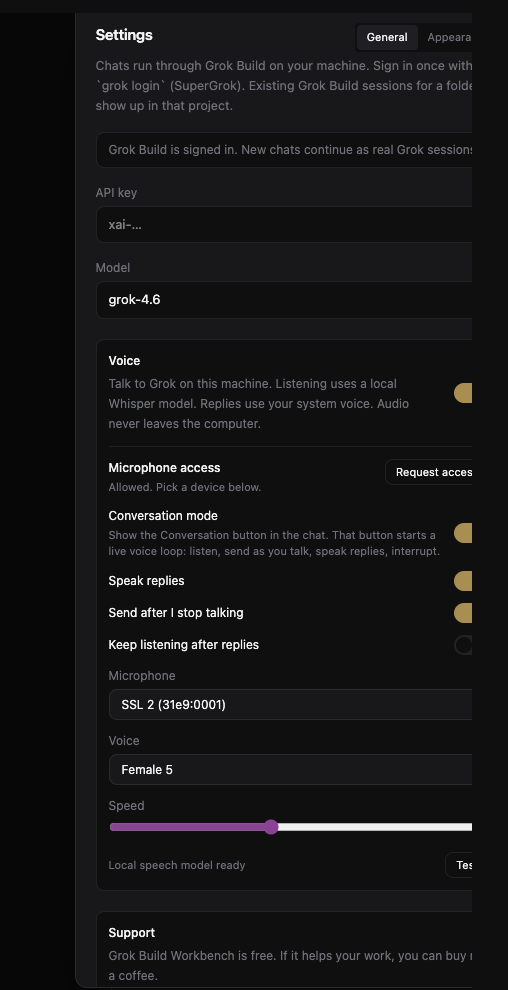
With Voice on, Settings shows these switches and pickers:
- Conversation mode — shows a Conversation button in the chat. That button starts a live talk loop (see below).
- Speak replies — Grok reads answers out loud.
- Send after I stop talking — when you pause, the transcript is sent as a message. Turn this off if you want to edit the text first.
- Keep listening after replies — the mic comes back on when Grok finishes speaking, so you do not have to click it each turn.
- Microphone — system default, or a specific input.
- Voice — ten local voices, Male 1–5 and Female 1–5.
- Speed — how fast Grok talks.
Conversation mode
This is the hands-on talk loop, not just a dictation mic. Turn Conversation mode on in Settings first. Then in a chat, click Conversation.
What happens:
- The Workbench starts listening. A caption shows what it heard.
- Pause, and that speech is sent as a message. Work starts immediately.
- Grok answers out loud. You can keep talking to steer while it speaks.
- When Grok is done, it listens again. Repeat until you click Conversation to stop.
The chat bar tells you the state: listening, transcribing, speaking, or working in the background. Click Conversation again to end the loop.
Just the microphone
If Conversation mode is off (or you have not started the loop), Voice still adds a mic button next to Send. Click it to dictate one message. Pause to send, or click the mic again to stop. This is useful when you want voice in, but you still type or click for the rest.
If it does not listen
- Confirm Voice is on in Settings, and microphone access is Allowed.
- Pick the right microphone if you have more than one.
- Wait for the local speech model to finish downloading (Settings shows progress).
- If you see a memory error, pause, then try again.