

The middle of the window is the conversation. You type, Grok replies, and — when a folder is attached — Grok may read files, edit them, run commands, or open pages in the browser. How freely it may do that depends on the mode.
Three modes
Click the mode chip under the composer, or use a slash command. Shift+Tab also cycles the mode. The three modes are:
| Mode | What it means |
|---|---|
| Ask | Grok waits for you to allow each tool. Safest while you are learning the app. |
| Auto | Tools are approved automatically. Faster, still bound by Grok Build’s own safety rules. |
| Plan | Grok thinks and outlines first. It does not change files until you approve the plan. |
Commands: /ask, /always-approve (Auto), /plan.
In Plan mode you get a checklist. Read it. Click Approve & implement when you want Grok to carry it out. Until then, Grok stays read-only.
When Grok asks permission
In Ask mode, a prompt appears when Grok wants to run a tool — edit a file, run a command, and so on. Allow or deny that step. The Thought process pane also records these prompts.
Steer while Grok is working
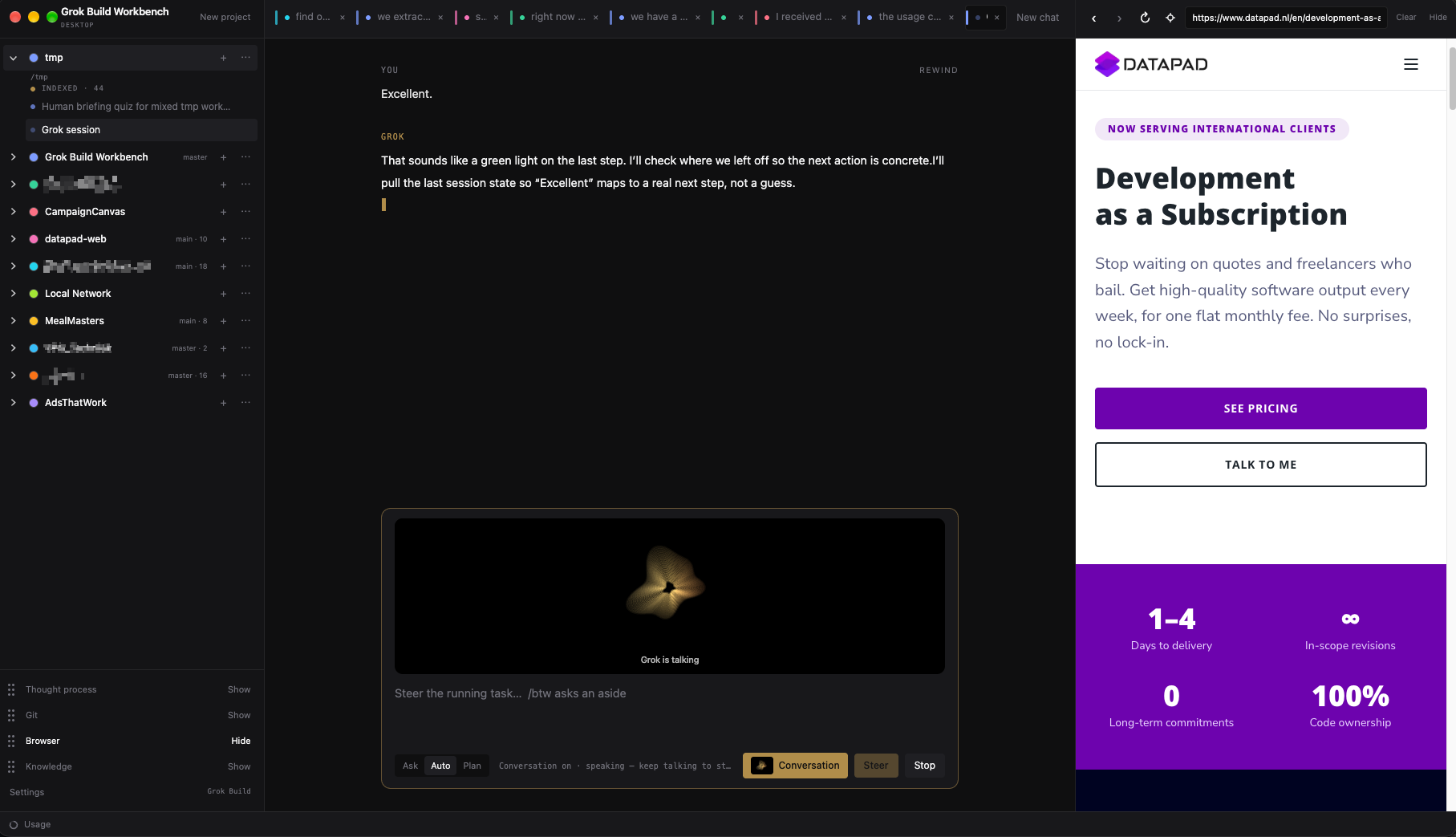
You do not have to wait for a reply to finish. While Grok is busy, the Send button becomes Steer. Type a correction or a new direction and send it. Grok keeps the same job and takes the new instruction into account.
A Stop button appears next to Steer. Escape also stops the current task (if you are not in a slash or file picker).
If you only have a side question and you do not want to change the job, type /btw and the question. That is an aside — Grok answers it without dropping the main task.
Slash commands
Type / to see commands. A short list of the useful ones:
| Command | What it does |
|---|---|
/new | New chat in this project |
/rewind | Undo later messages and file changes |
/plan /ask /always-approve | Switch mode |
/btw | Ask a side question without steering the task |
/transcribe | Transcribe a YouTube video (URL or video id) |
/commit | Ask Grok to commit current changes (no push) |
/review | Ask Grok to review uncommitted changes, without editing |
/theme or /settings | Open settings |
/usage | Open your xAI usage page |
/doctor | Ask Grok to diagnose this session |
The full slash-command list includes every name, aliases, memory and research commands, and the terminal-only names that do not run here.
Some Grok Build terminal commands are listed but not available in the Workbench. If you pick one of those, the app tells you so instead of failing silently.
Keys that matter
- Enter — send (or steer). Shift+Enter starts a new line.
- Escape — stop the running task.
- Escape twice — open rewind.
- Shift+Tab — cycle Ask / Auto / Plan.
Tips that save time
- Be specific about the folder, screen, or file. Use
@mentions. On a codebase, also index with Codegraph so Grok can find what you did not mention. - One job per chat beats mixing a refactor, a blog post, and a bug hunt.
- Use Plan mode for larger changes you want to see before any file is touched.
- Use Ask mode when you want to watch every step.
- Steer instead of starting a new chat when the direction is only slightly wrong.