

Think of a project as a drawer, and chats as conversations inside that drawer. One project is usually one codebase or one piece of work.
Projects
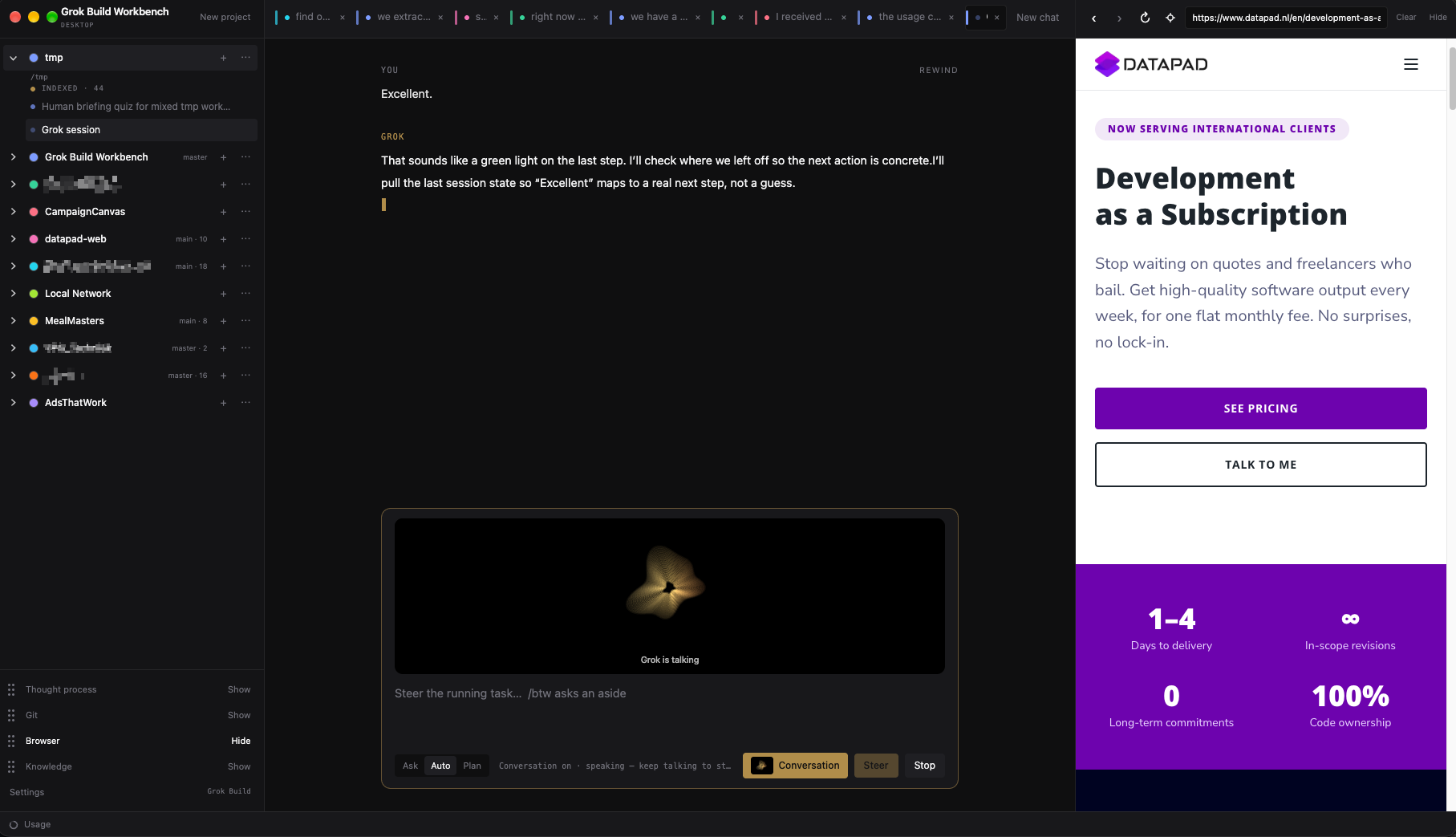
Click New project. Give it a name. Attach a folder if Grok should work on files there.
- The name is only a label. You can pick anything. Double-click the name later to rename it.
- The folder is optional. Attach it when you want Grok to read and edit files.
- Click the colored dot next to a project to change its color. That color shows up on chats so you can tell projects apart at a glance.
- Click the arrow to collapse or expand the chat list.
The ⋯ menu on a project has three actions:
- Rename — change the label in the sidebar.
- Change folder — point this project at a different folder, or attach one if it had none.
- Delete — remove the project and its chats from the Workbench. It does not delete the folder on disk.
If you already used Grok Build in a folder, those older sessions show up as chats when you attach that folder. You do not have to start over.
A few questions about the project
The first time you chat in a project, a card may appear above the composer. Grok asks a short round of questions so it understands what you are building — pick an answer, or Other and type your own. Submit when you are done, or Skip if you would rather not.
Your answers are remembered for later chats in that project. Skip once and it will not keep asking.
Chats
Click + on a project to start a new chat. Each chat has its own history. You can keep a planning chat, a bug-fix chat, and a “explain this file” chat side by side.
Several chats can stream at once. Switch tabs while Grok is still writing. The other chat is not cancelled. While a chat is working, Send becomes Steer — see Working with Grok.
Useful commands:
/new— start a fresh chat in the same project./rename My title— give the chat a name you will find later./delete— remove this chat after a confirm step./copy— copy the latest reply./export— copy the whole conversation as Markdown.
Mentioning files
Type @ and start a file or folder name. Pick from the list. Grok then knows exactly which path you mean. This is the reliable way to point at a screen, a config file, or a folder.
Images
Paste a screenshot or drop an image into the composer. Grok can look at it. Keep images reasonably small; a handful of screenshots is plenty for one message.
Indexing a folder
When the folder is a codebase, build a Codegraph index so Grok can find files and functions instead of searching blindly. Click Create index on the project (or Install & index the first time). Full guide: Codegraph.